.png?width=200&height=98&name=Horizontal%20PVFARM%20Logo%20(Small).png)
Selecting Multiple Objects
There are several ways to select multiple items at once in PVFARM:
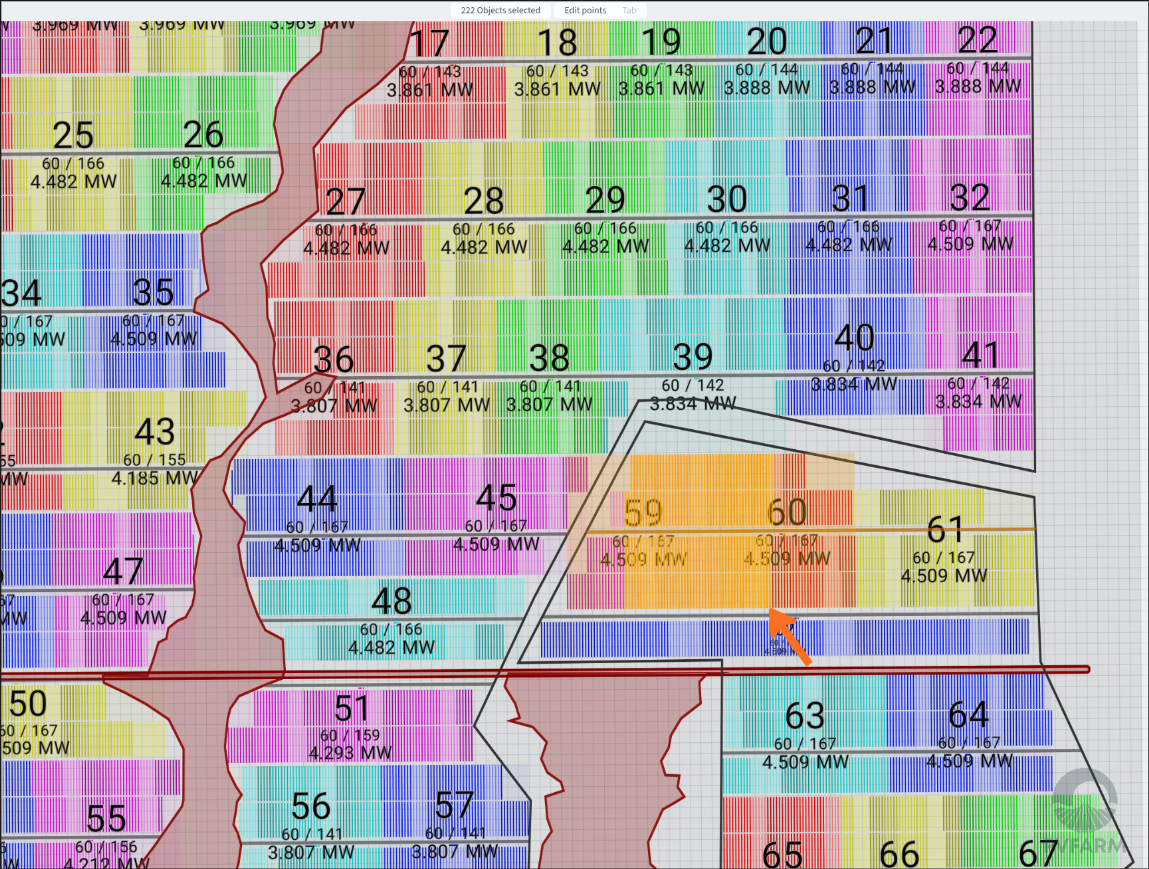
1. Press "CTRL" and window over to select everything in a particular area. You will see that your selected objects are now colored orange.
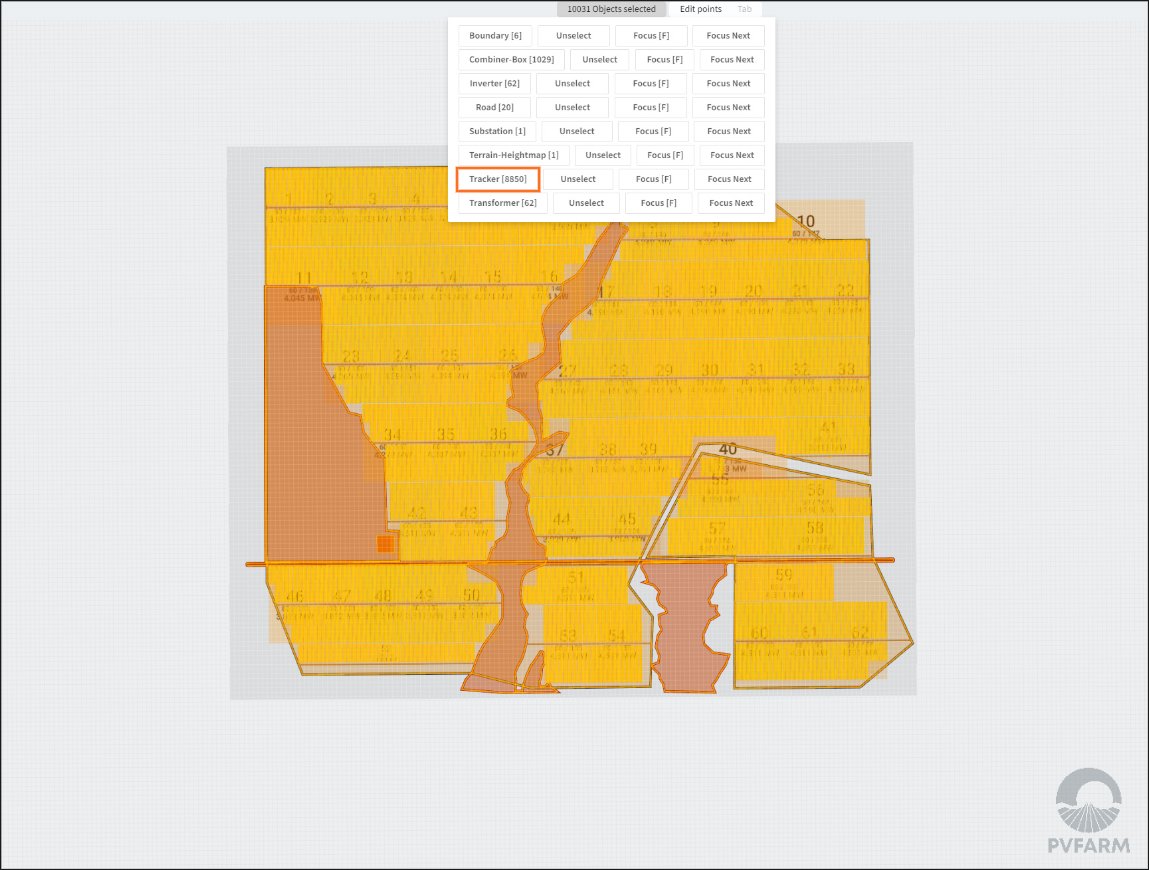
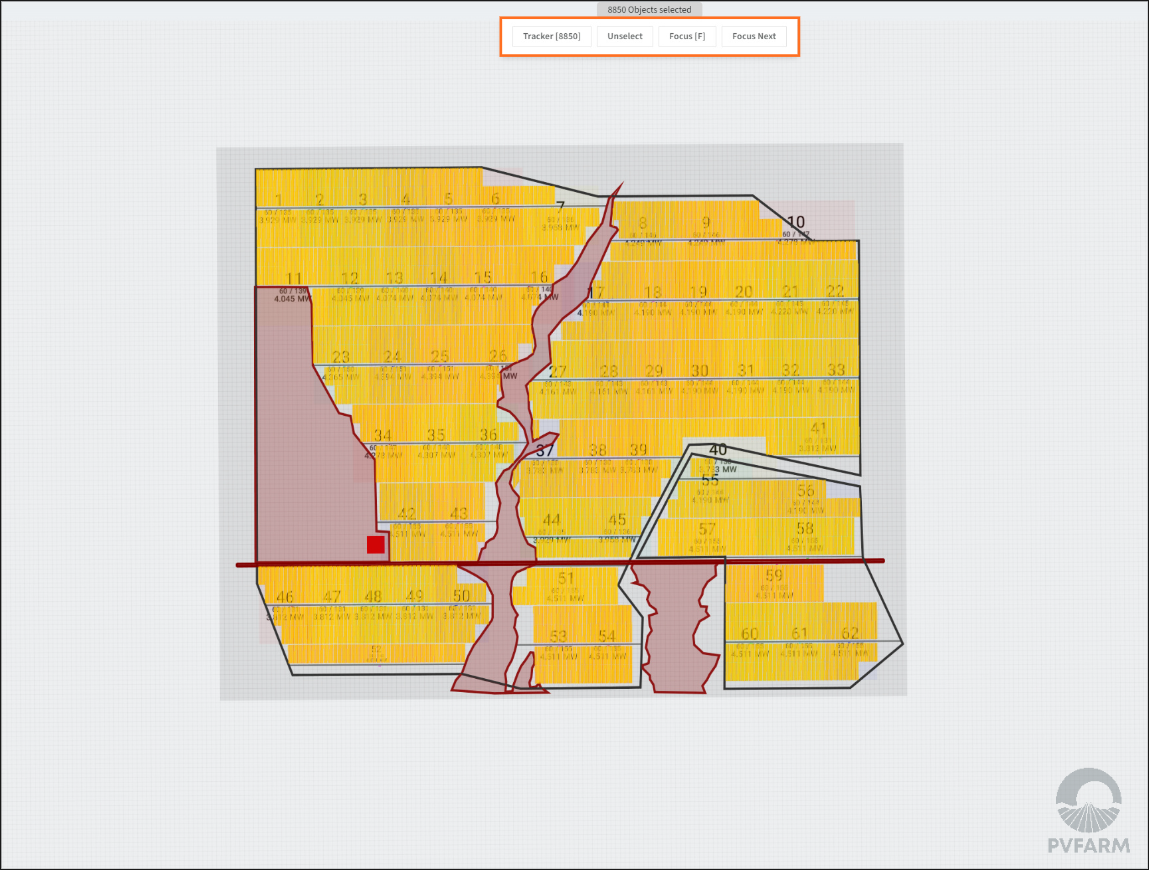
2. "CTRL A" to select everything. At the top of the screen, you will see what types of objects are available. From here you can click on one of those objects to select all of that type.
-
For example, I would click on Tracker [8850] to select all 8,850 trackers associated with the project.
Moving Objects
-
Select the object(s) and in the toolbar select the move tool or press “T” on your keyboard. You should see the icon centered on the object you want to move.
-
use "CTRL" on your keyboard for multiple selections.

-
-
You can grab/push the item using the red arrow to move left to right (or the Y axis), the green arrow to move up and down (or the X axis), and the blue arrow to move up and down in 3D space (or the Z axis)
-
You can move the object freely in any direction by grabbing it anywhere within the small center box.
-
Press “T” again to exit toggle mode or uncheck "Show Move Gizmo"
-
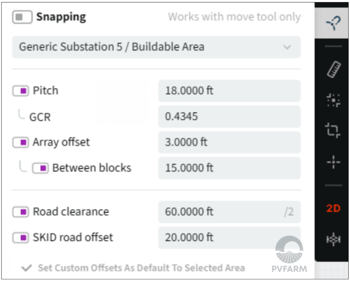 When working with the Moving objects tool you can also use the snapping option. This allows you to snap objects to a specific offset that you have specified. When working with this option the snap lines will appear inside of your layout. The snapping tool can be turned on/off but only when the move tool is activated.
Using the Model Explorer
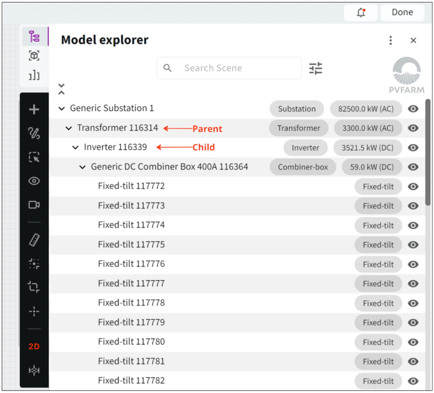
Another key to organizing your workspace is understanding hierarchies and the "Parent" and "Child" relationship.
-
Open the Model Explorer to see the entire solar collection system in a hierarchical (nested) format, sort of like a family tree. Expand this format to see the levels below (the "children") in the tree. When you select the object in the Model Explorer, it will also select it in the scene, and vice versa.
-
You can use the following commands to select items and edit their parent:
-
Edit | Clear Parent- Shift+P
-
Edit | Set last selected as parent- Ctrl+P
-
-
-
From the Model Explorer there are many things you can do:
-
Delete objects- selecting an object in the Model Explorer and pressing "delete" will delete that object or hierarchy from the scene.
-
Turn objects off or on- pressing the eye icon will hide or unhide that object.
-
Isolate Equipment- selecting objects and navigating to "View" -> "Isolate" or pressing "Shift H" will turn everything except what is selected off, allowing you to focus solely on the chosen equipment while hiding the rest.
-
Select All- with the Model Explorer open pressing "CTRL A" will select everything in the scene.
-