.png?width=200&height=98&name=Horizontal%20PVFARM%20Logo%20(Small).png)
Boundaries
-
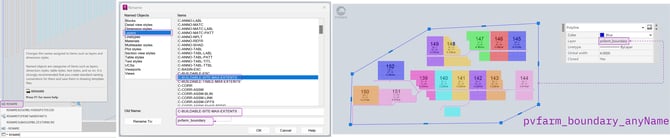
Boundaries need to be created with the layer 'pvfarm_boundary_anyName'
-
Make sure boundaries are closed polylines
-
use the JOIN command to make closed polylines and join different parts of a boundary
-
-
Rename existing boundaries layer via the Rename menu
-
RENAME command
-
Layer section
-
Find a boundary layer
-
Rename it with the name 'pvfarm_boundary_anyName_include'
- anyName will be any name that you would like to assign to this particular group of boundaries.
- include/exclude will determine if the boundaries in this layer will come in as inclusion or exclusion zones. This input must come last in the sequence.
-
Make sure the new name is applied for boundaries in the Model space
-
-
Roads
-
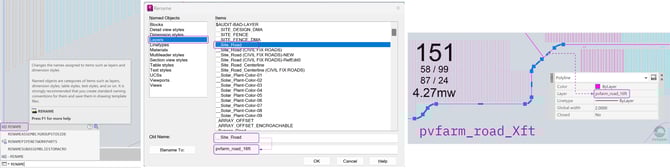
Roads need to be created as lines, arcs, and polylines with the name 'pvfarm_road_Xft'
-
Rename existing roads layer via the Rename menu
-
RENAME command
-
Layer section
-
Find a road layer
-
Rename it with the name 'pvfarm_road_Xft'
-
Make sure the new name is applied for roads in the Model space
-
-
Trackers
-
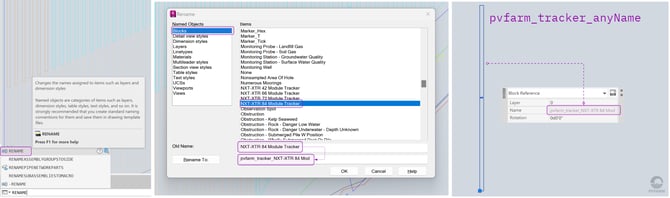
Trackers need to be created as a block reference with the name 'pvfarm_tracker_anyName'
-
Make sure the tracker shape is rectangular and a closed polyline
-
Rename existing tracker block reference via the Rename menu
-
RENAME command
-
Blocks section
-
Find a tracker block
-
Rename it with the name 'pvfarm_tracker_anyName'
-
Create new Layer and move the block there: pvfarm_equipment
-
-
-
-
-
Make sure the new name is applied for trackers in the Model space
-
-
Fixed-Tilt Objects
-
Fixed-Tilt objects need to be created as a block reference with the name 'pvfarm_fixed-tilt_anyName'
-
Make sure the fixed-tilt shape is rectangular and a closed polyline
-
Rename existing fixed-tilt block reference via the Rename menu
-
RENAME command
-
Blocks section
-
Find a fixed-tilt block
-
Rename it with the name 'pvfarm_fixed-tilt_anyName'
- Create new Layer and move the block there: pvfarm_equipment
-
Make sure the new name is applied for fixed-tilt objects in the Model space.
-
-
Skid
-
Skids need to be created as a block reference with the name 'pvfarm_skid_typeX'
-
Make sure the skid shape is rectangular and a closed polyline
-
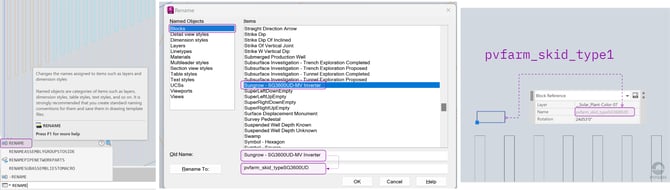
Rename existing skid block reference via the Rename menu
-
RENAME command
-
Blocks section
-
Find a skid block
-
Rename it with the name 'pvfarm_skid_typeX'
- Create new Layer and move the block there: pvfarm_equipment
-
Make sure the new name is applied for skids in the Model space
-
-
Create Electrical Group
Electrical groups can be created two ways:
Our prefered method:
- Draw a polyline around your trackers and all other equipment assoiated with each block. (if using a method that already creates polylines around your blocks skip this step)
- Rename the layer that these closed polylines are on to 'pvfarm_block_area'
Block Renaming Method:
-
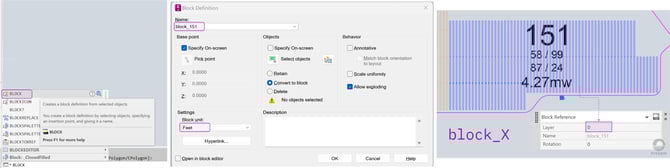
Electrical blocks need to be created as a block reference with the name 'block_X'
-
Make sure your drawing contains Skids and Trackers
-
Create a block reference for an Electrical block via the Block definition menu
-
BLOCK command
-
Select a skid and a bunch of trackers that belong to an electrical block
-
run the BLOCK command
-
Give it the name 'pvfarm_block_X'
-
Select 'Feet' as the Block unit
-
Make sure the block reference is applied in the Model space
-
-
Substation
-
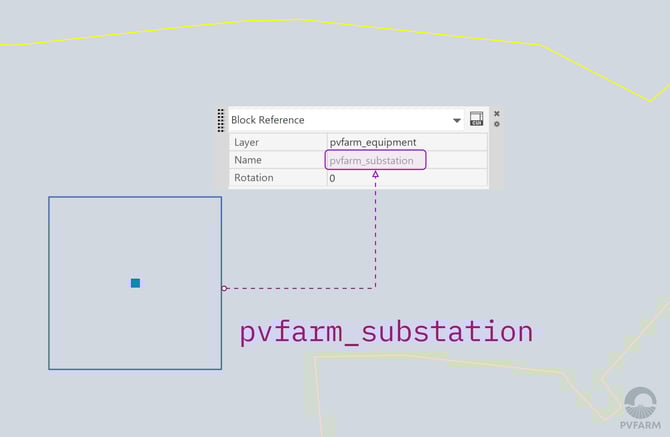
Substation needs to be created as a block reference with the name 'pvfarm_substation'
-
Make sure the block shape is rectangular and a closed polyline
-
Rename existing substation block reference via the Rename menu
-
RENAME command
-
Blocks section
-
Find a substation block
-
Rename it with the name 'pvfarm_substation'
-
Make sure the new name is applied for a substation in the Model space
-
Make sure you have only one substation in the Model Space
-
-
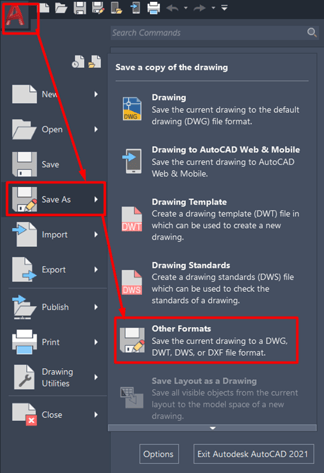
Save and Download your DXF file
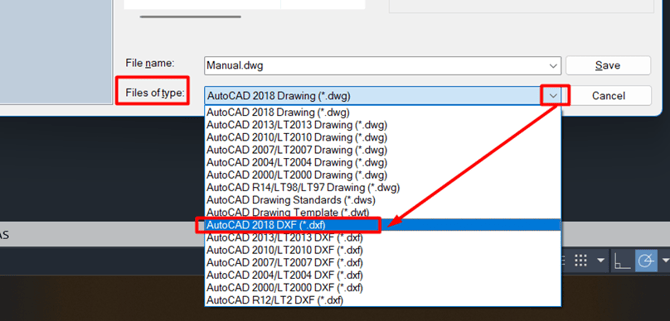
Ready to import into PVFARM