.png?width=200&height=98&name=Horizontal%20PVFARM%20Logo%20(Small).png)
-
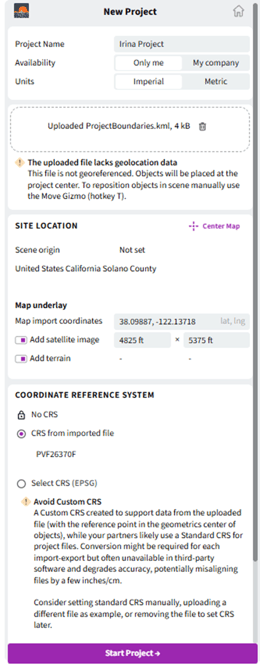
Select the Units you will use
-
Drag and drop your project files
-
Always read The warning icon (!) it is important note
-
Verify your project coordinates (Latitude, Longitude)
-
To visualize the selected location using a Google Maps image, enable “Add satellite image” and scale the image to match the required project area
-
If you want to add terrain for your file turn on “Add terrain”
-
Use the same CRS as your imported file
-
After completing all required fields, click “Start Project”
-
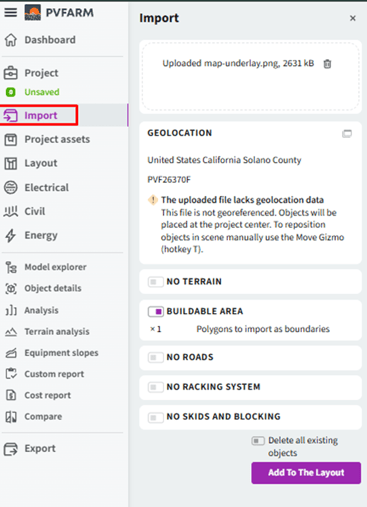
Always read the warning icon (!) it is important note
-
The enabled elements are those that PVFARM recognized from your imported file
-
The disabled elements are those that PVFARM did not detect in your imported file
-
After completing all previous steps, click “Add to the Layout”
-Result in PVFARM with added terrain and satellite image
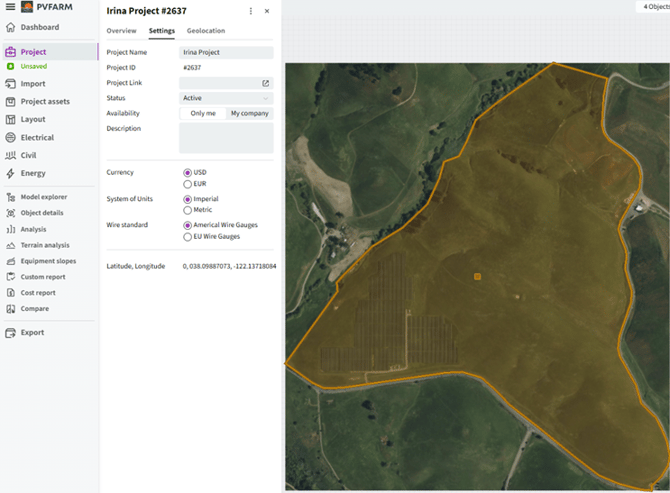
Note: -confirm that all required settings are configured correctly. Refer to Verify rule