Skip to content
English
  • There are no suggestions because the search field is empty.

Managing your Project and Saving

How to create and manage your projects

How to create a new project
  1. When in app.pvfarm.io/dashboard, press "+ New Project", as shown below:
    Screenshot 2026-02-26 at 3.53.37 PM


  2. A new project will appear as shown below:

    Screenshot 2026-02-26 at 3.54.02 PM


Understand project statuses

A project can have three statuses:

  1. Private Project: nobody from your team can see or access it. Only you can edit and delete it.

Screenshot 2026-02-26 at 3.54.25 PM

2. Public Project: everyone from your team can see and edit it. Only you can delete it.
Screenshot 2026-02-26 at 3.54.36 PM

3. Team Project: you and everyone from your team can see and edit it. But you cannot delete it.
Screenshot 2026-02-26 at 3.54.45 PM


Please note that only the project owner can delete a project and change it's status.

How to change a project status
  1. Go to the project settings

    Screenshot 2026-02-26 at 3.55.02 PM


  2. Select the ‘Status’

    • A project can be put in 4 categories: Active, Sandbox, Completed, and Archived.


      Screenshot 2026-02-26 at 3.55.15 PM


    • Once a project has been put in a category it will appear in that tab on the home screen.

      Screenshot 2026-02-26 at 3.55.34 PM


  3. Select the ‘Availability’

    • Changing this to "Company" will make the project available to all PVFARM users in your company.
      Screenshot 2026-02-26 at 3.55.45 PM


Saving and Versioning
  • In order to save your layout use Ctrl+S on your keyboard or the menu Project -> "Save"

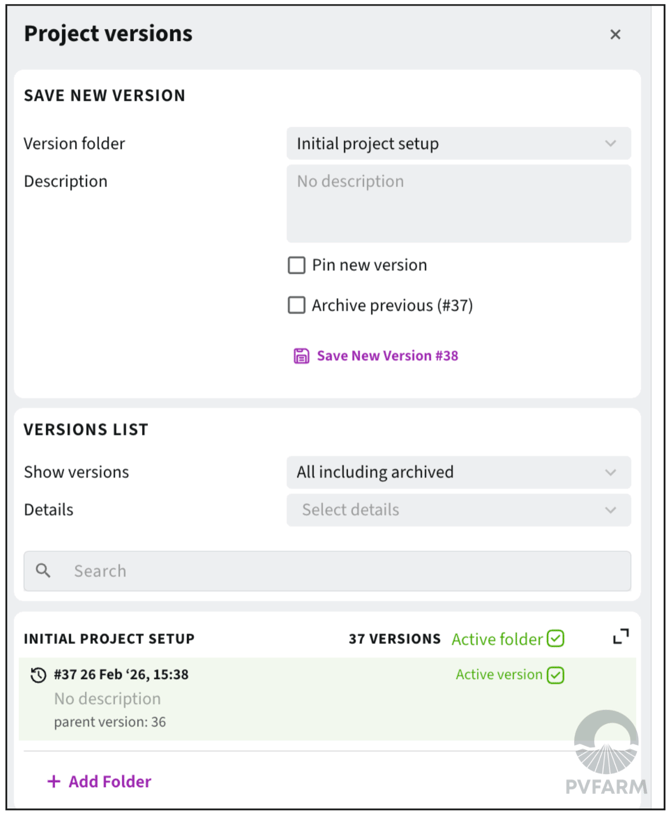
  • Every "Save" command creates a new project version.

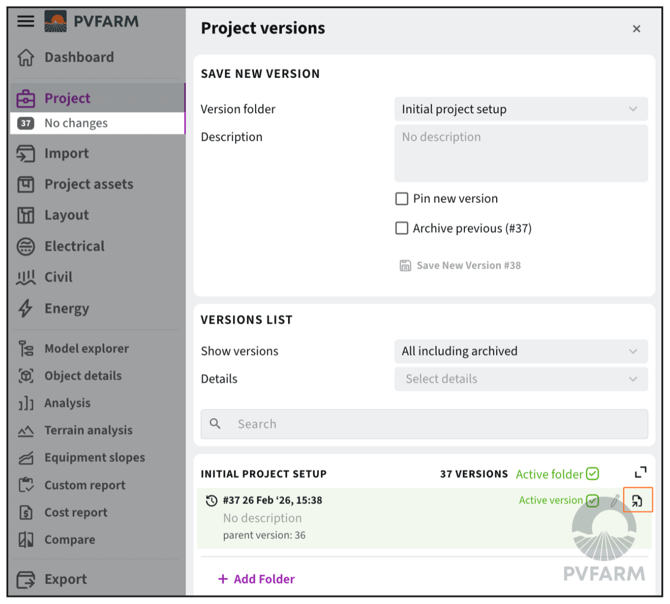
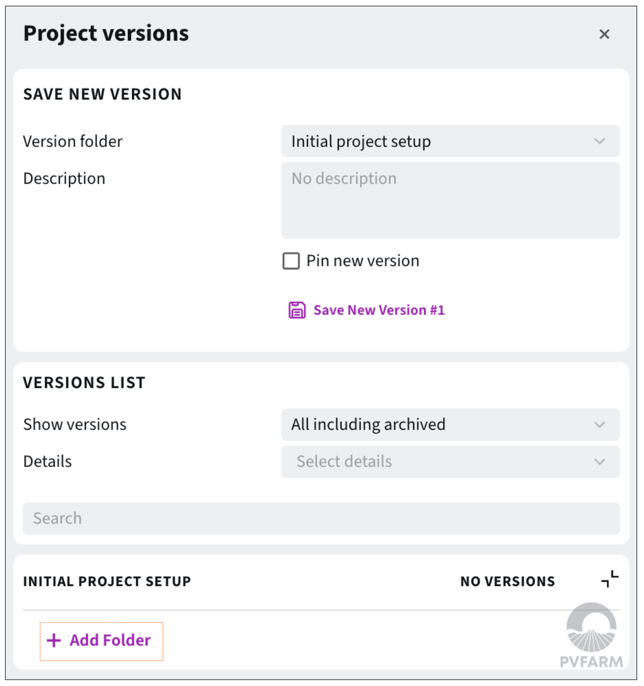
    • To see versions, please go to the project versions menu

    • We now have time stamping and the last person's email who saved

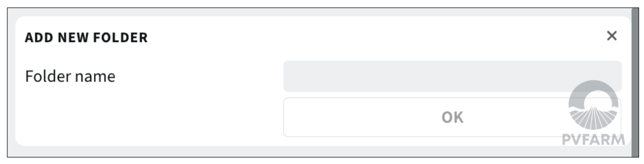
    • You can also now save versions into folders
      Screenshot 2026-02-26 at 3.56.07 PM 

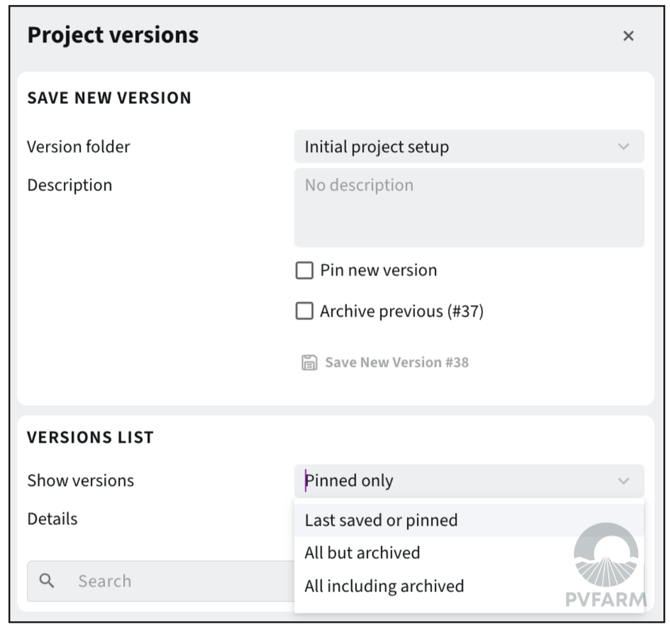
      You can also control what type of versions are in folders 

Screenshot 2026-02-26 at 3.56.22 PM

  • To name or rename a version please follow the instructions below:

    • Press the pencil -> Enter a new name and move folders


Screenshot 2026-02-26 at 3.56.33 PM

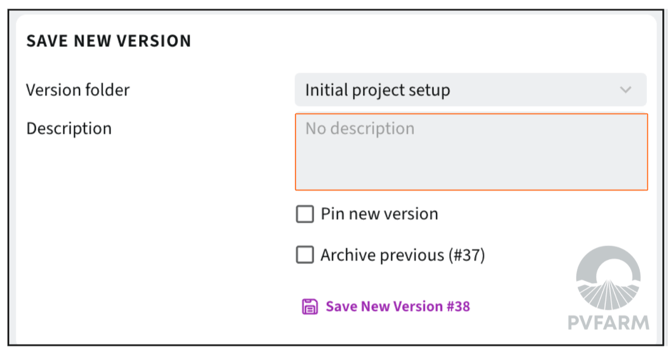
    • Make sure you have saved the version name in the "Description" box.

Screenshot 2026-02-26 at 3.57.12 PM

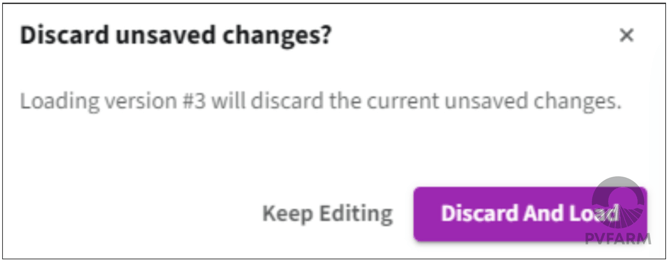
  • You can now load any of the versions created in the life of the project.

    • Be sure you saved your project before loading a new version.