
Although Chrome is the preferred browser when using PVFARM, you may need to adjust some of your settings to ensure you are getting the best performance.
Ad Blocker
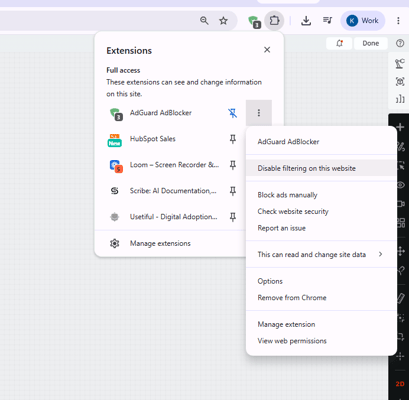
When you see slower than average load/ generation times, that may be a result of an ad blocker disrupting PVFARM's solvers. Even if you didn't put one on, it's possible your company has applied one. Contact your company's IT if help is needed, or to check and help resolve this, follow these steps.
-
On your browser, next to your URL bar, you will see an icon that looks like this
 that is your Extensions manager. Click on it scroll to the bottom where it says "Manage Extensions"
-
Look at your list of extension, confirm if any of them appear to be ad blockers. Depending on the type that's being used the following steps may vary.
-
Either in the extensions settings, or by navigating back to PVFARM and clicking on the extension button again, select allow PVFARM as an exception or disable for this website.
Inactive Tabs
Chrome saves on memory by setting tabs as inactive when you navigate to another one, in order to avoid timeouts, you can follow these steps.
- In the top corner of your broswer, click on the three dots and from the drop down menu select "settings"
- From the settings options, select "Performance"
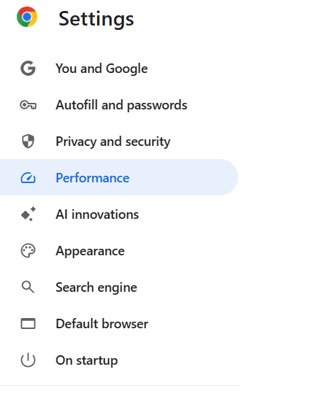
- Under the section that says "always keep this tab active" add app.pvfarm.io, that will allow PVFARM to process in the background and will minimize timing out.
