.png?width=200&height=98&name=Horizontal%20PVFARM%20Logo%20(Small).png)
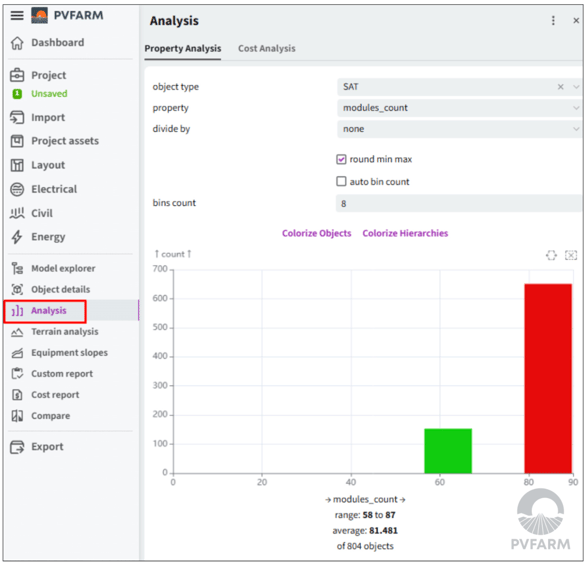
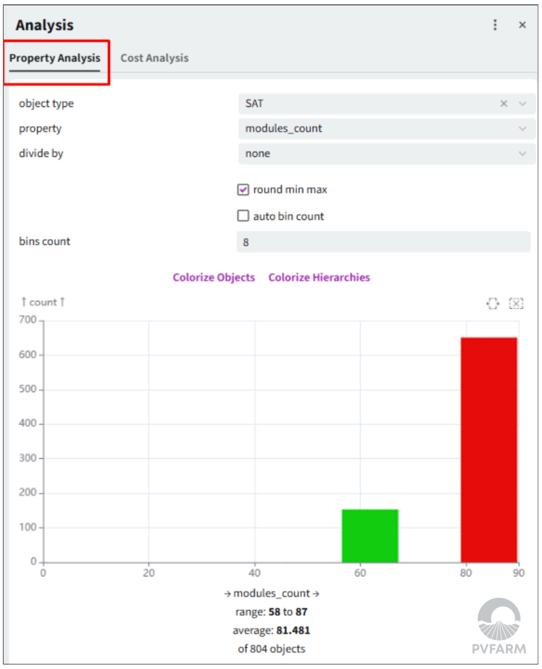
Property Analysis
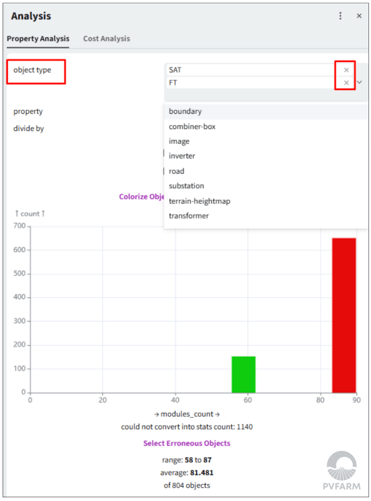
1. Select the object type you want to analyze (e.g. combiner box, SAT, road, inverter, etc.) To remove a selection, click the "x" to the right of its name
2. Select the property- each object type has a variety of properties available to allow you to focus on details.
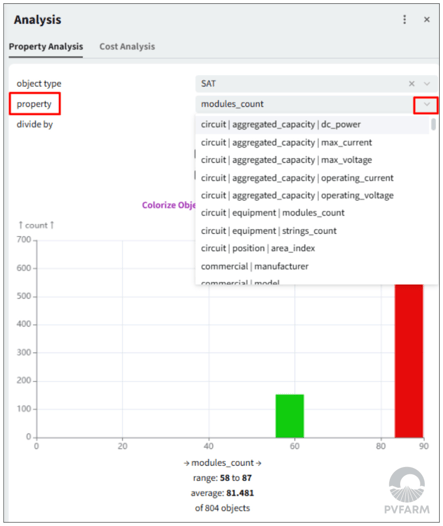
Note: You can type in what you're looking for to make it easier to sort through the list.
3. Select the divide by option
Use divide by to further split the analysis results based on an additional property.
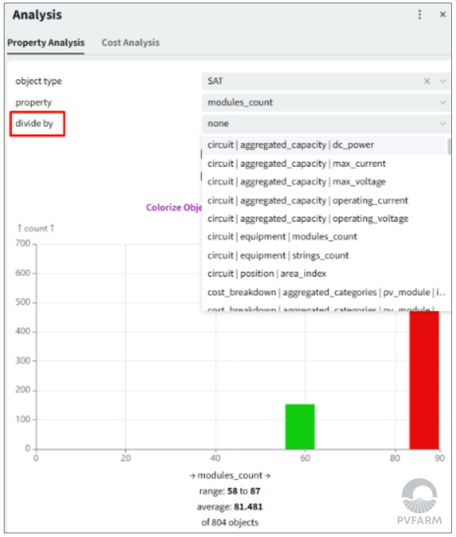
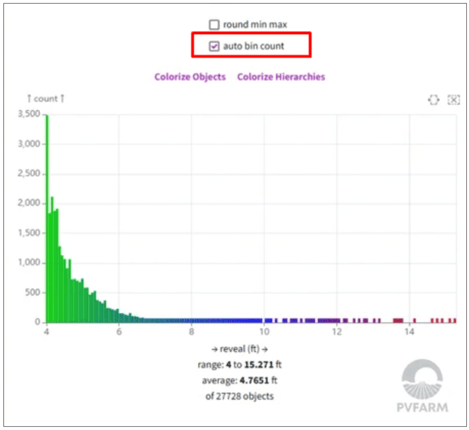
Underneath the graph, you can see that it gives you the range and average numbers.
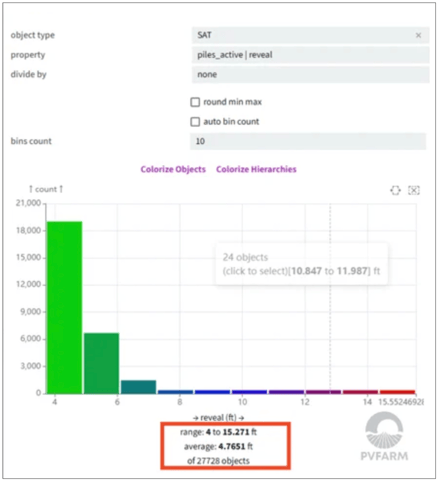
Graph Visualization
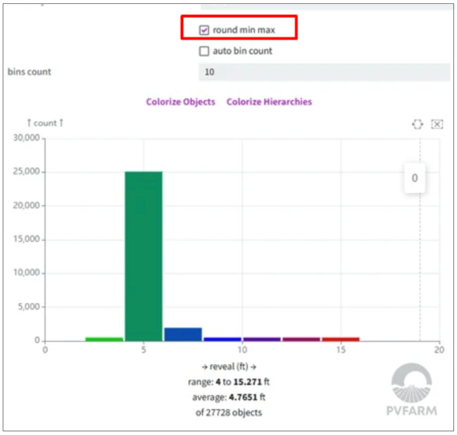
Round Min/Max- You can select the round min/max box. This will move the graph to show a rounded number instead of specific decimals.
Auto Bin Count – if this option is checked, the system automatically determines the number of bins to optimize the chart distribution.
Colorizing
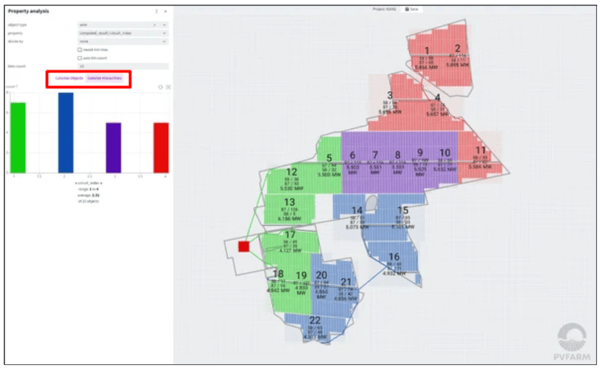
You can colorize your site based on the inputs for better insight into where these properties can be found on the site
-when colorizing the objects it changes the colors of just the object that has that property,
-when colorizing hierarchies it changes the color of everything that is within the hierarchy of the object that the property applies to. In the example below it has colorized both the MV wires and everything that those wires are connected to:
Common Inputs
Here are some common scenarios that users may want to utilize:
| TO VIEW X | OBJECT INPUT | PROPERTY INPUT |
|---|---|---|
| SAT (or FT) lengths | SAT (or fixed tilt) | Length |
| Pile Reveals | SAT (or fixed tilt) | piles_active | reveal |
| Inverter Loading | Inverter | circuit | aggregated_capacity | dc_power |
| Inverter Type | Inverter | commercial | model |
| String max Current | SAT | string | max_current |
| Cost per Watt of block | transformer | cost | block_cost (also can use the divide by to get $/W) |
| Combiner Box Loading | combiner-box | circuit | aggregated_capacity | dc_power |
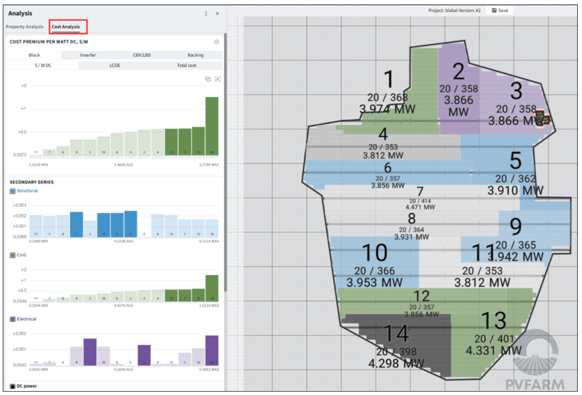
Cost Analysis
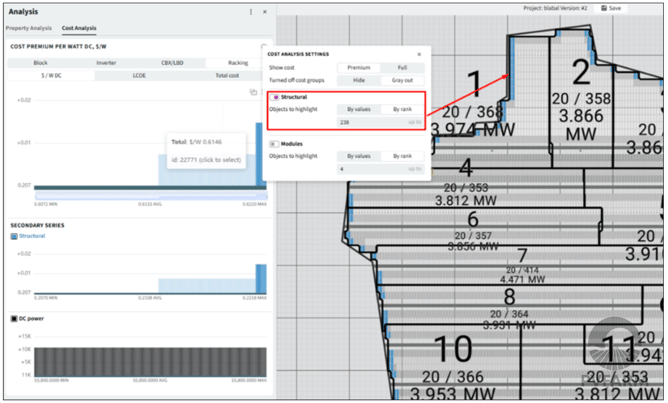
- compares costs across different system configurations and components. It is divided into categories such as Block, Inverter, CBX/LBD and Racking, allowing users to analyze costs based on metrics like €/W DC, LCOE and total cost.
Cost Analysis Settings
-allows users to control how cost data is displayed and how project elements are highlighted in the analysis view.
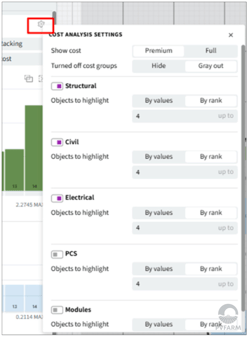
Show Cost - allows to switch between Premium and Full cost comparison values. Premium costs are the relative cost increase as it relates to the cheapest block. The full cost is the total cost of each block.
Cost Group Categories - allow configuration of different cost groups, such as:
- Structural
- Electrical
- PCS
- Modules
Objects to Highlight -for each cost group, users can define how many objects should be highlighted in the design either By values or By rank.